
Watch History
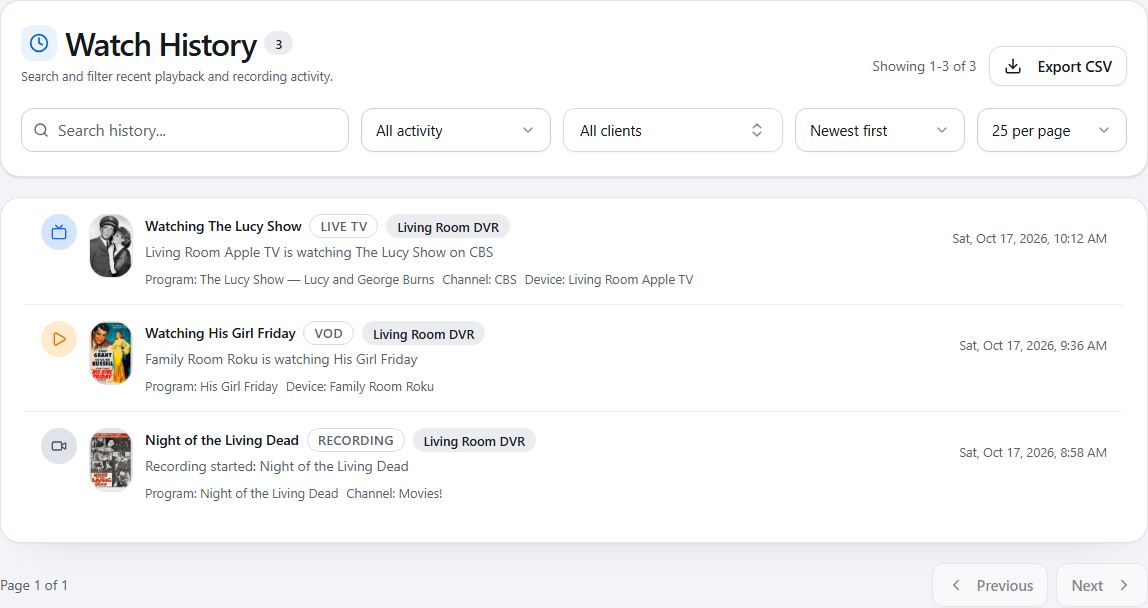
Watch History is the searchable record of live TV, VOD and recording activity ChannelWatch has detected. Open it from the desktop sidebar or History in the mobile navigation.
DVR connection changes and disk alerts appear in the Dashboard’s Recent Activity. They remain stored and available there, without cluttering Watch History.
It is different from the Notification Log: history describes activity; the log describes notification delivery attempts. An activity row alone does not confirm that an alert was delivered.
Find an event
Section titled “Find an event”- Choose All DVRs or a particular server in the top DVR selector.
- Use Search history to find matching activity.
- Narrow the list by activity type or client when needed.
- Choose Newest first or Oldest first, then a page size of 25, 50 or 100 rows.
- Use Previous and Next to move through the results. Open a row to inspect its details.
| Filter | Use it for |
|---|---|
| Activity type | Live TV, VOD or recording events. Choose All activity to see all three. |
| Client | A particular playback device. Available clients follow the DVR and activity-type scope. |
| Search | Narrowing the retained rows by a search term. Clear the search if an expected event is missing. |
| Sort and page size | Changing the reading order and how many rows appear on each page. These do not change what ChannelWatch records. |
Changing a filter returns to the first results page. Clear filters restores the history filters while keeping your current DVR selection.
The Client menu lists devices from all retained playback and recording activity for the selected DVR and activity type, including events older than 24 hours.
Read the details
Section titled “Read the details”Select an activity row to open its detail dialog. Depending on the event and the metadata available from the DVR, it can show the program, channel, device, source, time or recording status. Artwork appears when available; a missing image does not mean the event failed.
History only contains activity ChannelWatch observed and retained. It cannot reconstruct viewing that happened while monitoring was unavailable. For live connection status, return to the Dashboard.
Export CSV
Section titled “Export CSV”Choose Export CSV to download rows matching the current DVR, search, activity and client filters in the selected order. The export is not limited to the visible results page.
The CSV can contain program titles, device names, IP addresses and DVR identifiers. Review it before sharing. Search and client filters also appear in the page URL; clear them before sharing a link if they reveal private information. See Privacy for local storage and external-service boundaries.
If the list is empty or cannot load
Section titled “If the list is empty or cannot load”- Check the selected DVR and clear restrictive filters first.
- New installations need to observe activity before history has anything to show.
- If the page reports a loading error, use Try again. An error is not an empty history result.
- If monitoring is unavailable, follow Common issues.