
DVR Connection
ChannelWatch makes HTTP requests to your Channels DVR API and listens to its event stream. A normal setup needs a reachable host and port, usually 8089. You do not need DVR environment variables when using the web UI.
Choose an address ChannelWatch can reach
Section titled “Choose an address ChannelWatch can reach”| Where ChannelWatch runs | DVR address to enter |
|---|---|
| Host networking on the DVR machine | localhost can work if the DVR listens on that interface. Its LAN address also works when reachable. |
| Host networking on another machine | The DVR’s LAN IP or hostname. |
| Docker bridge networking | The DVR’s LAN IP or hostname. localhost refers to the ChannelWatch container. |
| A remote network or VPN | A DVR address routed from the container, such as a reachable Tailnet IP or hostname. |
Use only the hostname or IP in Host, and put the port in Port. Do not paste a web-page path into the Host field.
Add or edit the connection
Section titled “Add or edit the connection”For a new installation, follow First-Run Configuration. Its manual form includes Test Connection and an optional API key.
For saved connections, open Settings > General > DVR & App > DVR Servers. Edit Name, Host, or Port directly, or choose + Add Server, then Save Settings. See Adding DVR Servers for the exact form and its limits.
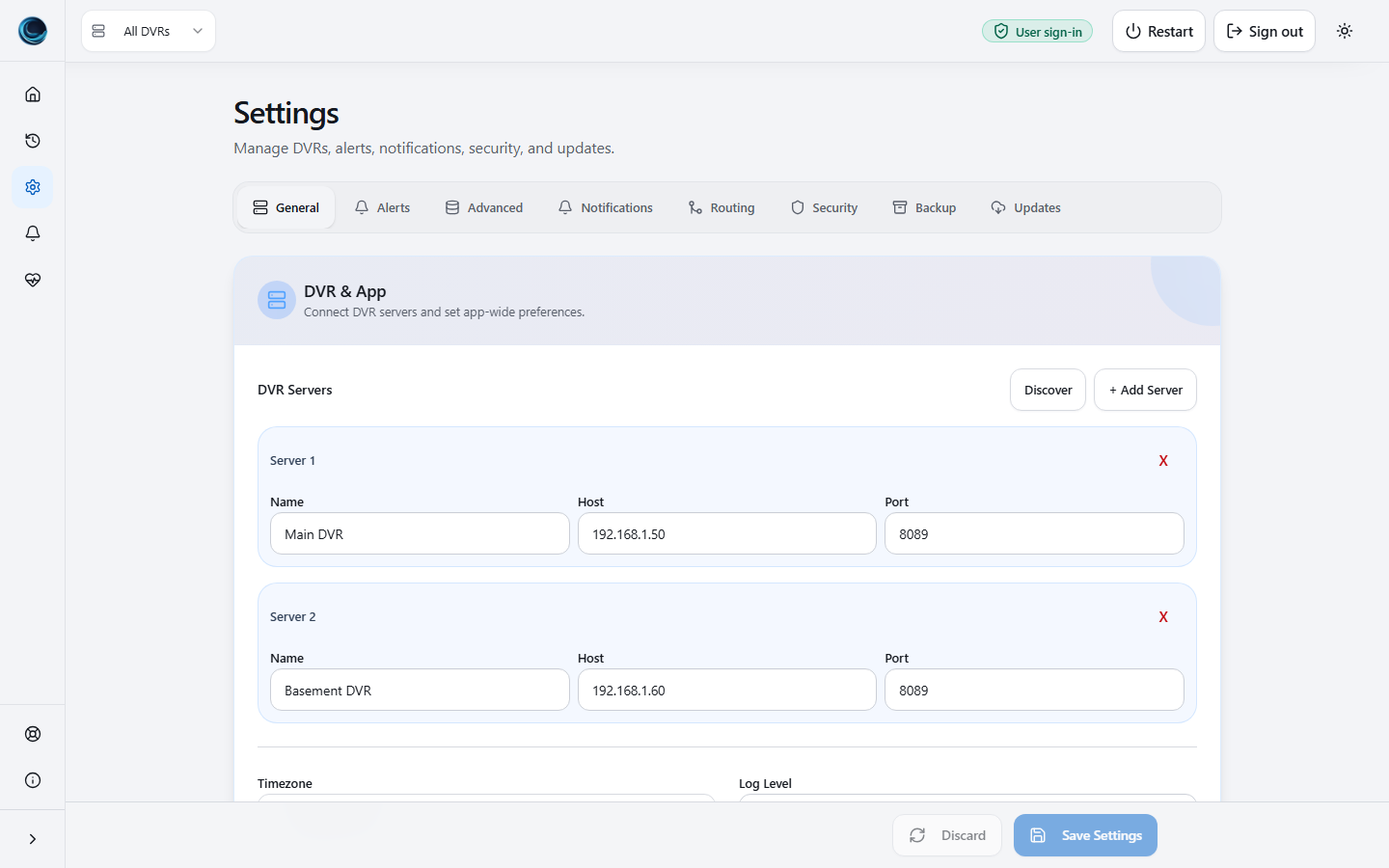
The General form does not expose an API-key or Enabled editor in v1.6.5. Stored API keys and enabled state are supported by the saved settings model and API; see DVR API Keys and Environment Bootstrap Config for advanced configuration.
Bridge access to a DVR on the Docker host
Section titled “Bridge access to a DVR on the Docker host”The host’s LAN address is usually the clearest choice. On Linux, another option is the Docker host-gateway alias:
services: channelwatch: image: coderluii/channelwatch:latest ports: - "8501:8501" extra_hosts: - "host.docker.internal:host-gateway"Enter host.docker.internal as the DVR host. Keep the rest of your existing service configuration, including the /config volume. Docker Desktop provides this hostname automatically.
Firewall requirements
Section titled “Firewall requirements”Allow outbound TCP from ChannelWatch to the DVR host’s API port, plus return traffic. The DVR does not initiate a separate connection back to ChannelWatch. The DVR host’s firewall, VLAN rules, or guest-network isolation can still block its API even if another device can reach it.
For discovery, local multicast must also pass between the container and the DVR. See mDNS Auto-Discovery.
Check the connection
Section titled “Check the connection”- Confirm the saved host and port in Settings > General.
- Open Diagnostics > Diagnostic Tests > Connectivity.
- Run DVR Connection and inspect the result in Live Logs.
- Return to the dashboard and check the DVR’s connection and monitoring status.
A saved entry is not proof of a working connection. Check the current dashboard status and logs. If the test returns Unknown test name received, use the v1.6.5 CLI fallback. That error does not diagnose a DVR failure. The legacy test checks the first enabled DVR; use Per-DVR Health for the other servers.
Notification test buttons are separate and send real alerts to configured destinations.
Common connection errors
Section titled “Common connection errors”| Symptom | Check next |
|---|---|
| Connection refused | Confirm the host and port, and make sure Channels DVR is running and listening there. |
| Connection timed out | Check firewall rules, routing, VPN access, and whether the IP changed. |
| Hostname does not resolve | Try a stable IP to isolate DNS, then correct the container’s DNS configuration. |
| Authentication fails | Check whether the DVR requires an API key and whether the stored key is current. |
| Discovery succeeds but monitoring fails | Check API access separately; mDNS only advertises an address. |
ChannelWatch reconnects after DVR outages. If recovery does not occur, check the DVR address and review the logs rather than repeatedly adding duplicate entries.
Automation and recovery
Section titled “Automation and recovery”For deployment-managed entries, use Environment Bootstrap Config. Legacy CHANNELS_DVR_HOST and CHANNELS_DVR_PORT remain compatibility inputs with startup warnings; new automation should use CHANNELS_DVR_SERVERS.
The backend has separate soft-delete, restore, and hard-delete operations. The General form’s X removes a row from the saved list; it does not provide the archive API’s recovery window. See Adding DVR Servers before removing a connection.