
Maintenance Windows
The Dashboard’s Maintenance windows card finds gaps between known Channels DVR recording jobs. Use it to choose a quieter time to restart a service, update a host, or do other planned work.
Each enabled DVR is checked separately. Use the Dashboard DVR selector to focus on one server, or select All DVRs to compare them.
Filter the results
Section titled “Filter the results”- Open the Dashboard and find Maintenance windows.
- Choose one DVR in the header selector, or keep All DVRs.
- On mobile, tap Filters. Wider screens show the filters above the results.
- Set the duration, date range, days, and hours. The card refreshes when a filter changes; use Refresh to fetch the schedule again.
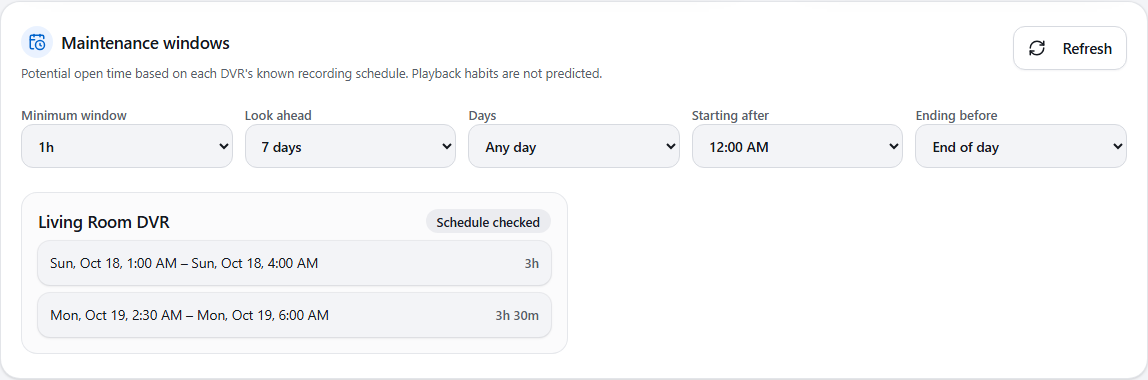
The filters cover:
- the minimum useful gap, from 30 minutes to 4 hours
- a 1, 3, 7, or 14-day range
- any day, weekdays, or weekends
- the local start and end hours to include, including an overnight range
Times use the timezone configured in ChannelWatch. Overlapping and back-to-back recordings count as one busy block. A recording already in progress stays busy until its scheduled end.
These are Dashboard search filters. They do not set the automatic updater’s maintenance window; that separate policy lives in Settings > Updates.
Read the status first
Section titled “Read the status first”ChannelWatch only shows time it can bound with known recording jobs. If the returned schedule ends before the requested range, the card labels the result Known schedule only and does not mark the unobserved tail as free.
An unreachable DVR, an empty schedule response, or a malformed recording entry produces no suggested window for that server. These states appear as DVR unavailable or Schedule unknown.
Use the API
Section titled “Use the API”GET /api/v1/maintenance-windows exposes the same per-DVR results and filters for scripts and dashboards. See the REST API reference for the query parameters and response rules.