
Report a Problem
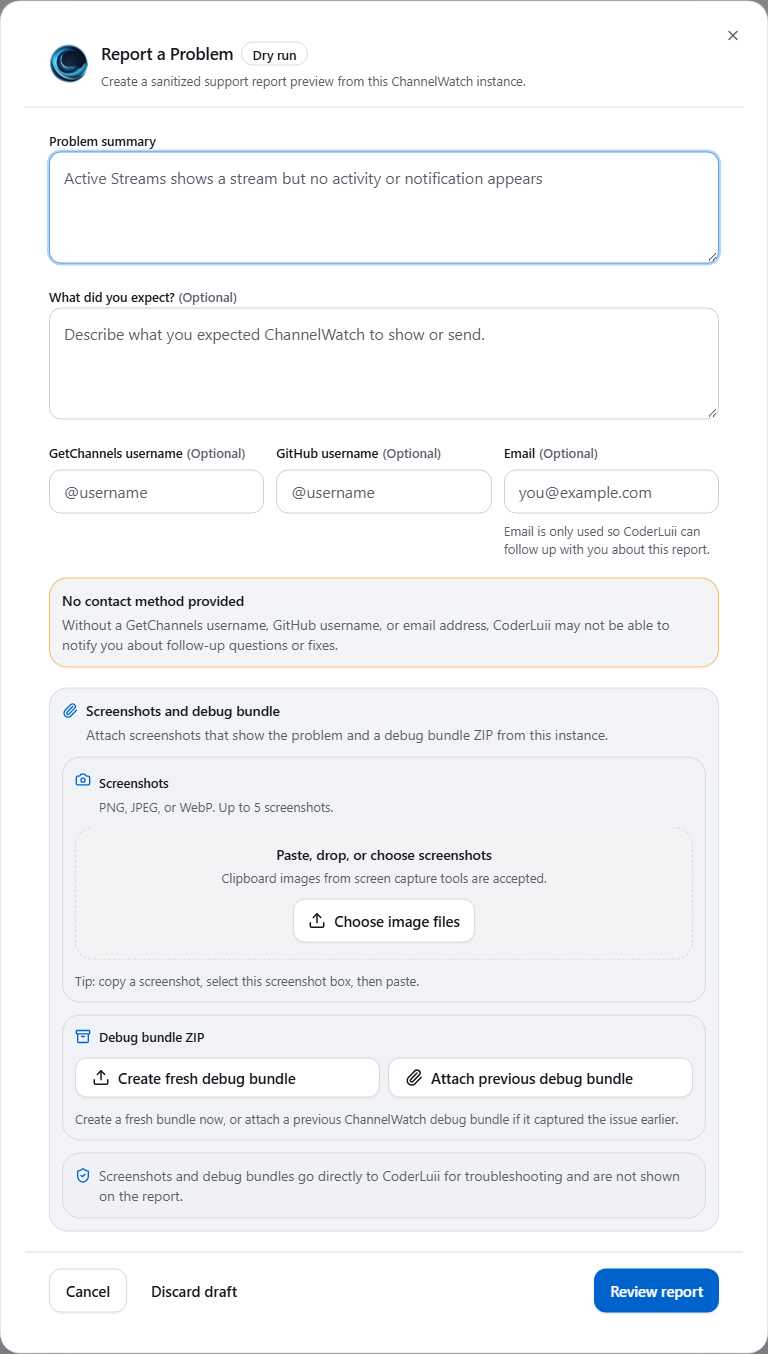
The fastest way to send useful troubleshooting information is the Report a Problem option in the ChannelWatch Diagnostics tab. It prepares a structured report from inside your running app so you do not have to manually collect screenshots, logs, and debug bundles before asking for help.
View the report form
When to use it
Section titled “When to use it”Use Report a Problem when:
- a notification provider fails, rate-limits, or delivers unexpected content
- Recent Activity, watch history, or delivery history does not match what the DVR is doing
- the dashboard shows a degraded state and you want to include safe diagnostics
- you need to share screenshots or a ChannelWatch-generated debug bundle without putting private files into a public issue body
For quick checks that do not need a report, start with Diagnostics and Common Issues.
Create a report
Section titled “Create a report”- Open ChannelWatch at
http://your-server-ip:8501. - Go to Diagnostics.
- Click Report a Problem.
- Enter the problem summary and what you expected to happen.
- Review the generated public issue preview.
- Attach screenshots if they help explain the issue.
- Create or attach one ChannelWatch debug bundle ZIP when the report asks for it.
- Submit the report, or use the support code/offline package if direct submit is not available.
What goes into the public issue
Section titled “What goes into the public issue”The public issue preview is intentionally limited to details that are safe to discuss in the tracker:
| Field | Purpose |
|---|---|
| Problem summary | What is wrong from the operator’s point of view |
| Expected behavior | What should have happened instead |
| Public contact handles | Optional GitHub or Channels community usernames |
| Diagnostics summary | ChannelWatch version, DVR counts, core status, monitoring status, enabled alert toggles, and provider names |
What stays private
Section titled “What stays private”Screenshots and debug bundle ZIPs are private support attachments. They are not placed into the public issue body.
ChannelWatch also keeps these out of the public issue text:
- private email address
- screenshot filenames
- raw logs
- API keys
- webhook secrets
- notification provider credentials
- DVR API keys
- private config values
Direct submit and manual upload
Section titled “Direct submit and manual upload”When direct submit is available, the app sends the sanitized report through the configured support intake path.
If direct submit is not available, ChannelWatch can create a support code or offline package. The hosted upload page accepts that support code, lets you add screenshots or one debug bundle, and re-validates everything before creating the public issue or sending private attachments.
The in-app flow does not show a hosted bot-verification challenge. The public upload page keeps its own verification and support-code gate because it is reachable from the public web.
Related pages
Section titled “Related pages”- Diagnostics - run tests and open Report a Problem
- Debug Bundles - what the debug bundle contains and excludes
- Privacy - local artifacts, outbound traffic, and support-report boundaries
- Common Issues - fixes to try before filing a report