
Notification Templates
Use templates when you want a shorter alert or different wording. Templates change the message text; alert presets decide which events notify, and routing decides where they go.
Edit a template
Section titled “Edit a template”- Open Settings > Notifications and find Notification Templates.
- Open the template settings and select Edit template for an alert family.
- Turn Use default off.
- Enter a Title Template and Body Template using the placeholders shown in the editor.
- Select Save.
Channel Watching, VOD Watching, Recording Events, and Disk Space have separate templates. DVR Health uses its built-in outage and recovery messages in v1.6.0.
To return to the built-in text, turn Use default on or select Reset to Default, then save.
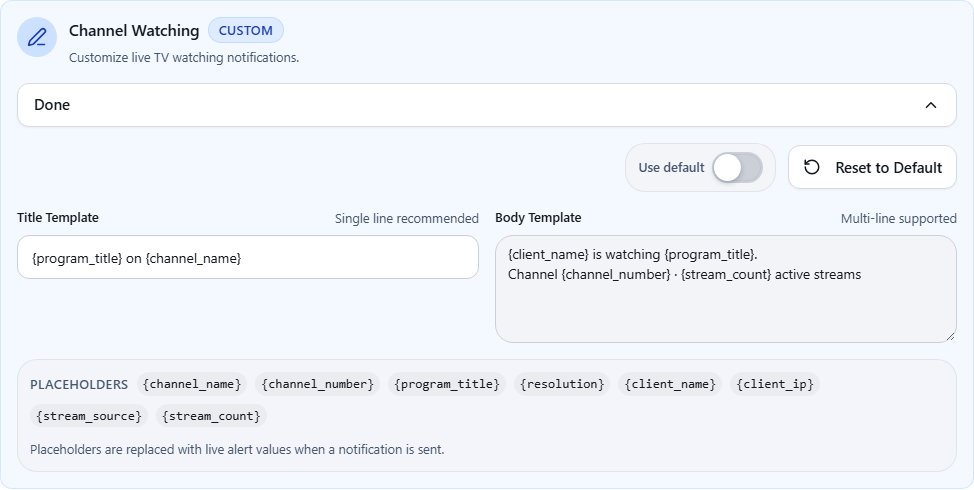
Start with a short message
Section titled “Start with a short message”For Channel Watching, try this title:
{client_name} is watching {channel_name}And this body:
{program_title}{Channel: <channel_number}{Device: <client_name}With synthetic values Living Room Apple TV, HBO, The Last of Us, and channel 501, it renders as:
Title: Living Room Apple TV is watching HBO
The Last of UsChannel: 501Device: Living Room Apple TV
This is a text example, not a notification captured from a provider app.
Supported syntax
Section titled “Supported syntax”Write placeholders with single braces. These templates are not Jinja, JavaScript, or Python.
| Purpose | Template text | Result |
|---|---|---|
| Insert a value | {channel_name} |
The channel name |
| Add a label only when a value exists | {Channel: <channel_number} |
Channel: 501, or nothing when the value is empty |
| Add text after a value | {disk_percent> used} |
A percentage followed by used |
| Uppercase | {severity!u} |
WARNING |
| Lowercase | {recording_status!l} |
completed |
| Title case | {title!c} |
A title-cased value |
| First list item | {genres:[0]} |
The first genre |
| First three list items | {cast:[:3]} |
Up to three names, separated by commas |
Values and artwork depend on the metadata available from your DVR. A known placeholder with an empty value produces no text. An unknown placeholder or unsupported format causes the formatter to use the default message.
Useful placeholders
Section titled “Useful placeholders”Use the list in each editor for the easiest starting point.
| Template | Common fields |
|---|---|
| Channel Watching | channel_name, channel_number, program_title, client_name, client_ip, resolution, stream_source, stream_count |
| VOD Watching | media_title, progress_line, client_name, client_ip, summary_block, info_sections |
| Recording Events | channel_name, channel_number, status, details, summary_block, time_table |
| Disk Space | disk_free, disk_total, disk_used, disk_percent, disk_path, severity, threshold |
| Shared DVR identity | server_name, server_url, server_version |
| Shared app/time fields | channelwatch_version, alert_type_friendly, timestamp, datestamp, current_time |
Use {server_name} for the DVR name. dvr_name and dvr_id are delivery context fields, not supported template placeholders in v1.6.0.
For a full field list, see the v1.6.0 template reference.
Conditional sections
Section titled “Conditional sections”VOD templates support content tags. For example:
<movie>Movie: {title} ({release_year})</movie><episode>Episode: {show_name} - {episode_title}</episode>{Starring: <cast:[:3]}Available content tags are movie, episode, show, live, and recorded. The engine keeps a block only when its condition matches the alert context.
Recording templates support started, completed, failed, and cancelled blocks:
{recording_status_friendly}: {title}<failed>Error: {error_message}</failed><completed>Saved to {file_path}</completed>The template engine does not execute code. Keep unsupported markup and expressions out of the placeholders.
Check the result
Section titled “Check the result”Save, then use the matching command-line notification test. ChannelWatch v1.6.0 has a Diagnostics test-name limitation. Tests send real messages through configured destinations. Check the received message as well as the Delivery Log.
If the built-in wording appears after you save custom text, check Use default, placeholder spelling, and the app logs for template errors. Restore the default before troubleshooting provider credentials.
Related pages
Section titled “Related pages”- Notification Examples for built-in message formats
- Alert Presets to reduce how often alerts arrive
- Provider Matrix for destination setup