
Discord
Discord webhooks let ChannelWatch post alert messages directly to any channel in your server. No bot account or OAuth setup is required. You create a webhook URL in Discord’s server settings and paste it into ChannelWatch.
ChannelWatch sends Discord webhooks directly over HTTP for standard discord.com/api/webhooks/ URLs. For non-standard Discord URL formats, the Custom (Apprise) provider handles the fallback using Apprise.
What you need
Section titled “What you need”- A Discord server where you have Manage Webhooks permission (or are the server owner)
- A channel to receive ChannelWatch alerts
Step 1: Create a webhook in Discord
Section titled “Step 1: Create a webhook in Discord”- Open Discord and go to the server where you want alerts delivered.
- Right-click the target channel and select Edit Channel.
- Click Integrations in the left sidebar.
- Click Webhooks, then New Webhook.
- Give the webhook a name (e.g.
ChannelWatch) and optionally set an avatar. - Click Copy Webhook URL.
The URL looks like:
https://discord.com/api/webhooks/<webhook-id>/<webhook-token>Step 2: Enter the webhook URL in ChannelWatch
Section titled “Step 2: Enter the webhook URL in ChannelWatch”- Open the ChannelWatch web UI at
http://your-server-ip:8501. - Go to Settings > Notifications and stay on the Global scope.
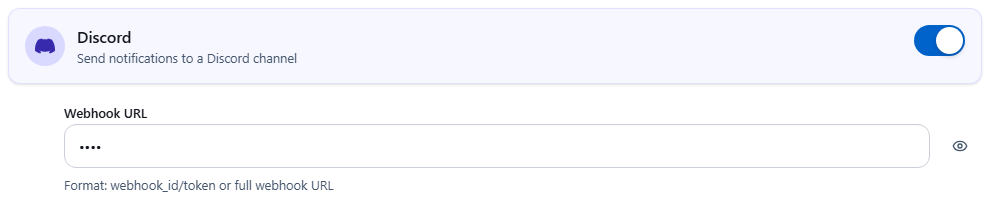
- Turn on Discord.
- Paste the full webhook URL into the Webhook URL field.
- Click Save and wait for ChannelWatch to reload its notification providers.
ChannelWatch parses the URL automatically. You don’t need to extract the webhook ID or token manually.
Step 3: Test delivery
Section titled “Step 3: Test delivery”ChannelWatch v1.6.0 has a Diagnostics notification-test limitation. Use the supported command-line fallback below when testing this release. It sends a real message to configured destinations:
docker exec -it channelwatch python -m core.main --test-alert ALERT_CHANNEL_WATCHINGCheck the Discord channel and Delivery Log. A direct Discord webhook is posted as ChannelWatch Bot. A sent result confirms that Discord accepted the request, not that every member saw it.
What Discord notifications look like
Section titled “What Discord notifications look like”ChannelWatch sends Discord notifications as embedded messages. The alert title appears as the embed title, and the alert body appears as the embed description. If the alert includes an image (channel logo or program artwork), it appears inside the embed.
A Channel Watching alert in Discord looks like an embed card with:
- Title:
Channels DVR - Watching TVwith the default template - Description: the full alert body (channel number, program, device, IP, source)
- Image: channel logo or program artwork (if available and reachable)
ChannelWatch sets the embed accent to blue (#3498DB). The text examples and template editor describe the content; Discord controls the final client layout.
Troubleshooting
Section titled “Troubleshooting”No message appears after saving
Confirm the webhook URL was copied in full. Partial URLs (missing the token after the last /) are silently rejected. Delete the value, re-copy from Discord, and save again.
“Unknown Webhook” error in logs
The webhook was deleted in Discord after you saved the URL in ChannelWatch. Go to Settings > Notifications, open the Global scope, clear the Discord field, and create a new webhook in Discord to replace it.
Messages appear but without images
Discord embeds require an image URL that passes ChannelWatch’s safety checks and is reachable by Discord. Private and local URLs are omitted. The alert can still send as text. Also check that the alert’s image option is enabled and that DVR metadata contains artwork.
Webhook URL format rejected
ChannelWatch expects a standard Discord webhook URL starting with https://discord.com/api/webhooks/ or https://discordapp.com/api/webhooks/. If you have a non-standard Discord URL format, use the Custom (Apprise) provider instead. Apprise supports additional Discord URL schemes that the dedicated Discord field does not accept.
Channel permissions
The webhook is tied to the specific channel it was created in. If you want alerts in a different channel, create a new webhook in that channel and update the URL in ChannelWatch.
Rate limiting
Discord applies rate limits that can vary by route and webhook; there is no fixed per-minute allowance to rely on here. See Discord’s rate-limit documentation. ChannelWatch also has bounded retries and a circuit breaker. Check the delivery log and provider response when an alert does not arrive.
Related pages
Section titled “Related pages”- Provider Matrix - compare all notification providers at a glance
- Custom (Apprise) - use Apprise for non-standard Discord URLs or other services
- Pushover - direct push notifications to iOS, Android, and desktop
- Notification Examples - full gallery of alert formats
- Diagnostics - test and verify your notification setup