
Alert Presets
Start with Important Only if you want to hear about problems without receiving a notification whenever someone watches TV. You can change individual alert switches afterward.
Choose a preset
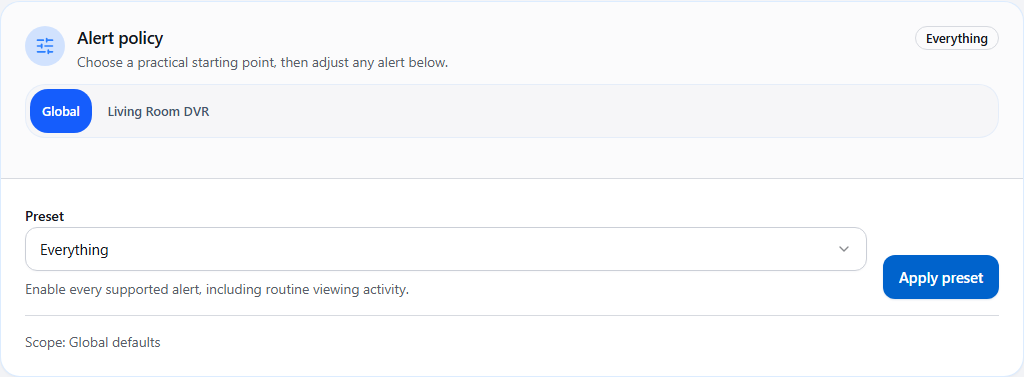
Section titled “Choose a preset”- Open Settings > Alerts.
- In Alert Policy, select Global or the DVR you want to change.
- Choose a preset, then select Apply preset.
- Review the changed alert switches and select Save.
Selecting a preset in the list alone does not apply it. Apply preset changes the form; Save writes the settings.
| Notification | Monitor Only | Important Only | Balanced | Everything |
|---|---|---|---|---|
| Low disk space | Off | On | On | On |
| DVR unreachable and recovered | Off | On | On | On |
| Recording cancelled, failed, skipped, missed, or interrupted | Off | On | On | On |
| Recording started and completed | Off | Off | On | On |
| Recording scheduled | Off | Off | Off | On |
| Live TV and DVR playback | Off | Off | Off | On |
Monitor Only keeps monitoring and activity history active while disabling alert delivery through these switches. It does not erase history or disconnect a DVR.
Custom means the current switches do not match a named preset. It is a description of your choices, not a fifth preset you need to apply.
Fresh installs and upgrades
Section titled “Fresh installs and upgrades”Fresh v1.6.0 installs start with Important Only. An upgrade preserves existing notification choices rather than replacing them with the new default. The review notice in Alert Policy lets you keep those choices or apply a preset.
Global settings and DVR overrides
Section titled “Global settings and DVR overrides”Global sets the shared alert choices. A DVR can inherit them or keep its own overrides. Applying a preset to one DVR changes that DVR’s alert policy; it does not change the other DVRs.
Existing per-DVR overrides still take priority after you change Global. Check the scope shown in the card before applying a preset. See per-DVR settings if a server is behaving differently from Global.
Choose where alerts go
Section titled “Choose where alerts go”A preset decides which events can notify. It does not enter provider credentials or replace the routing matrix.
For an alert to arrive, you need all three:
- The alert family and relevant outcome are enabled.
- A notification destination is configured.
- That destination is allowed for the DVR and alert type in Settings > Routing.
Related pages
Section titled “Related pages”- DVR Health alerts for outage delay and recovery behavior
- Recording Events for the recording outcome switches
- Provider Matrix to choose a destination
- Delivery Log to investigate an attempted send